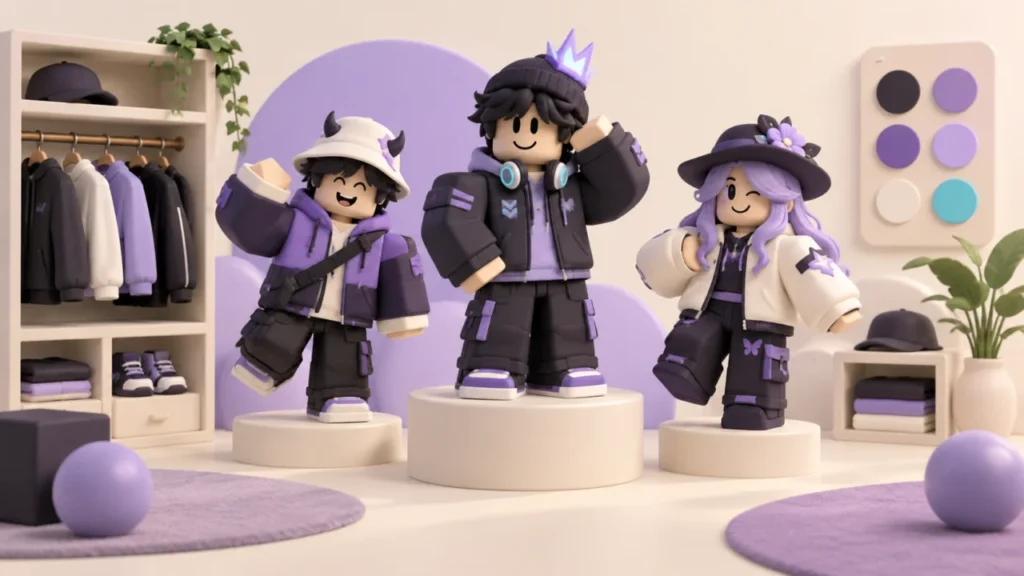
Start in your avatar editor with items you already own. Choose a simple base look, add one accessory or clothing item at a time, and check the result before buying anything else. This makes it easier to create an outfit you like and to identify which change caused an unexpected appearance.
In the browser editor, select an item category and choose an item to wear it; select a worn item again to remove it. Roblox also documents a Redraw option for an avatar preview that does not reflect your changes. Roblox: Browser: Customizing Your Avatar
Find the editor on your device
Use the Avatar area on the website. On mobile, Roblox is renaming the Avatar tab to Me by region. Its mobile guide describes the item-wearing controls and the Customize → Body → Skin route for skin colour. Roblox: Mobile: Customizing Your Avatar
If your screen differs from a tutorial, look for the current function rather than tapping an unrelated button in the same position. Check that you are in your own account before making changes. This matters on shared devices where another family member’s outfit might look familiar enough to miss the account switch.
Build the outfit in a useful order
Choose one visual idea first: a colour palette, a favourite accessory, or a simple theme. Then decide which part should stand out. An outfit with several competing focal points can be hard to judge, especially in a small preview.
- Start with a base you recognise and can return to easily.
- Add the main clothing choice and inspect it from more than one angle.
- Add one accessory, then check whether it covers something you wanted visible.
- Remove a competing piece before buying another item to solve the appearance.
- Take a private reference screenshot when you are happy with the combination.
This is a design workflow, not a required Roblox sequence. The purpose is to keep the experiment understandable. If something looks wrong after the third change, you know which recent choices to compare.
Inspect the item type before spending Robux
An item’s details page identifies its type and description. Roblox provides 2D or 3D previews and a Try On option where available, with separate animation preview controls. Roblox: Understanding an item’s details page
Check what you are actually buying rather than relying on the picture alone. A thumbnail can suggest an overall look while the purchase supplies only one part of it. Read the description all the way through and compare the item name and type with the result you want.
Try the proposed item with the outfit you intend to wear. Look at the front, side, and back where the preview permits. If you cannot tell what the purchase includes, postpone it. A rushed purchase is a poor way to answer a question about the product.
If the preview looks wrong
First separate an ownership problem from a display problem. Can you find the item in the editor, and does the interface show it selected? If so, change only that item and compare the preview again. If it is absent from your owned items, use our missing-avatar-item guide instead of buying another copy immediately.
Make a note of whether the odd appearance occurs in the editor, in one game, or everywhere you checked. That distinction helps you describe the problem clearly. Do not assume a purchase vanished solely because one scene shows a different character.
If you have a recent purchase to identify, our transaction-history guide helps you locate the relevant record. Keep the exact item page so you can compare what was bought with what you expected.
If Roblox reset the outfit
Roblox may reset an avatar configuration for a rules violation and send an in-app notice. If offered, the notice’s Report mistake option is the designated feedback route. Roblox: Why Was My Avatar Reset?
Read that notice before repeatedly recreating the same combination. Treat a reset message differently from a slow preview or a missing inventory item. Save the explanation for your own reference and decide what part of the look you can change while following the stated rules.
Keep customization within the budget you chose
Set a spending limit for the outfit before browsing. Compare candidates, then return to the one that best fits your original idea. You can stop with a look made entirely from owned items; a successful customization does not require a new purchase.
For a child’s account, make the approval conversation about the specific item and its purpose. Our parental-controls guide helps families separate outfit choices from payment permissions. Finish by checking the final appearance and keeping enough information to identify the items later.
Official sources reviewed September 13, 2026. This guide is based on documentation research, not a claim of hands-on testing. Qrajo is independent of Roblox. Featured artwork is an original illustration. Read our editorial policy.